Router Security at Home: The Settings Most People Never Change
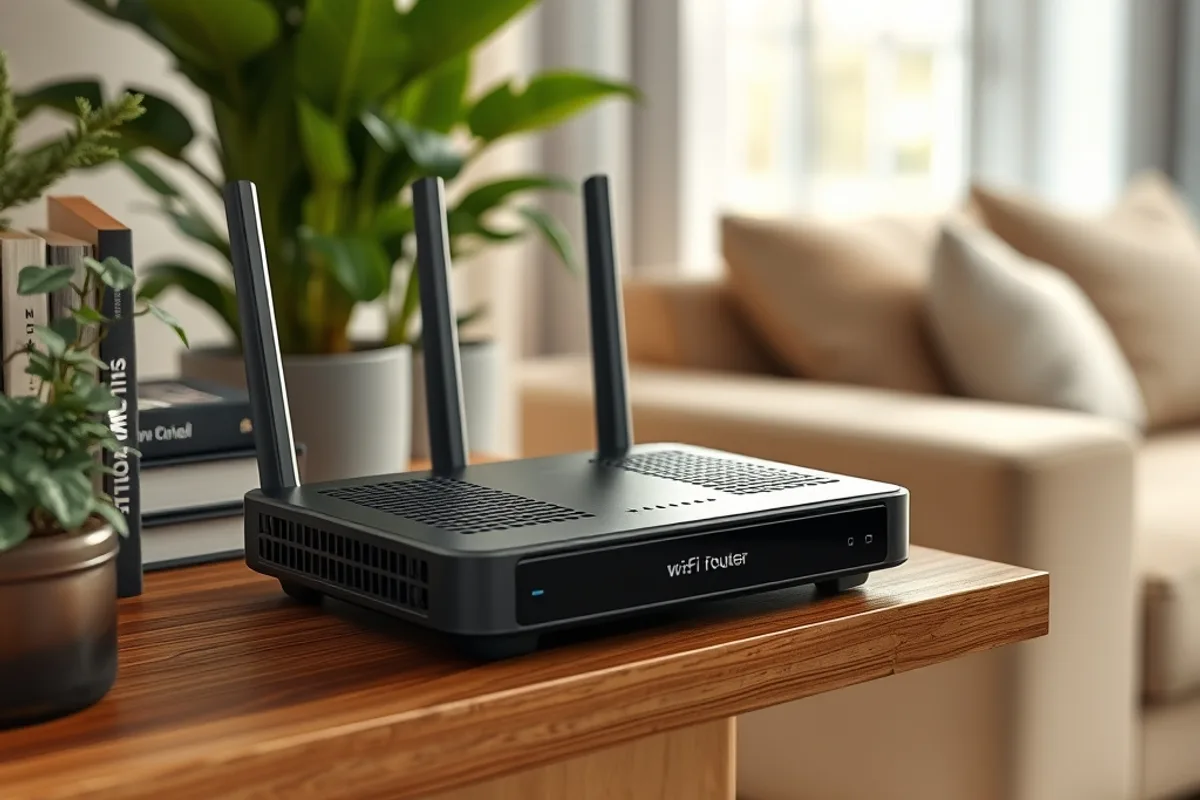
The router sits in a cupboard for years, quietly connecting everything in the house. It is also a small computer with an administrator login, a web interface and firmware that may not have been updated since installation. Most home networks are not broken into by advanced attacks. They are entered through a default password, an outdated firmware or a remote feature nobody remembers enabling.
The router is a small computer
A router runs an operating system, serves a management page and often exposes services to the internet. That makes it a target, especially when the default credentials are still active. The risk grows with the number of connected devices: phones, laptops, cameras, speakers, doorbells and thermostats all trust the network the router provides.
Treat the router as part of your security perimeter, not as plumbing. It controls who joins the network, what they can reach and whether remote access is possible. A few settings changed once, then checked yearly, remove most of the easy paths an attacker would try.
First hour: credentials and firmware
Change the administrator password before anything else. Use a long, unique passphrase stored in a password manager, not the brand name plus a number. Confirm that remote administration from the internet is switched off. If the router supports it, change the default management address or restrict access to wired devices only.
Then update the firmware and turn on automatic updates if available. Check the manufacturer support page for the model and note the date of the last security update. A router that has not received one in several years should be replaced, even if it still works. Firmware is the part of the device you cannot see and the part attackers exploit most often.
Related reading: a practical passkey migration plan. For the wider picture, see Passkeys Are Finally Practical.
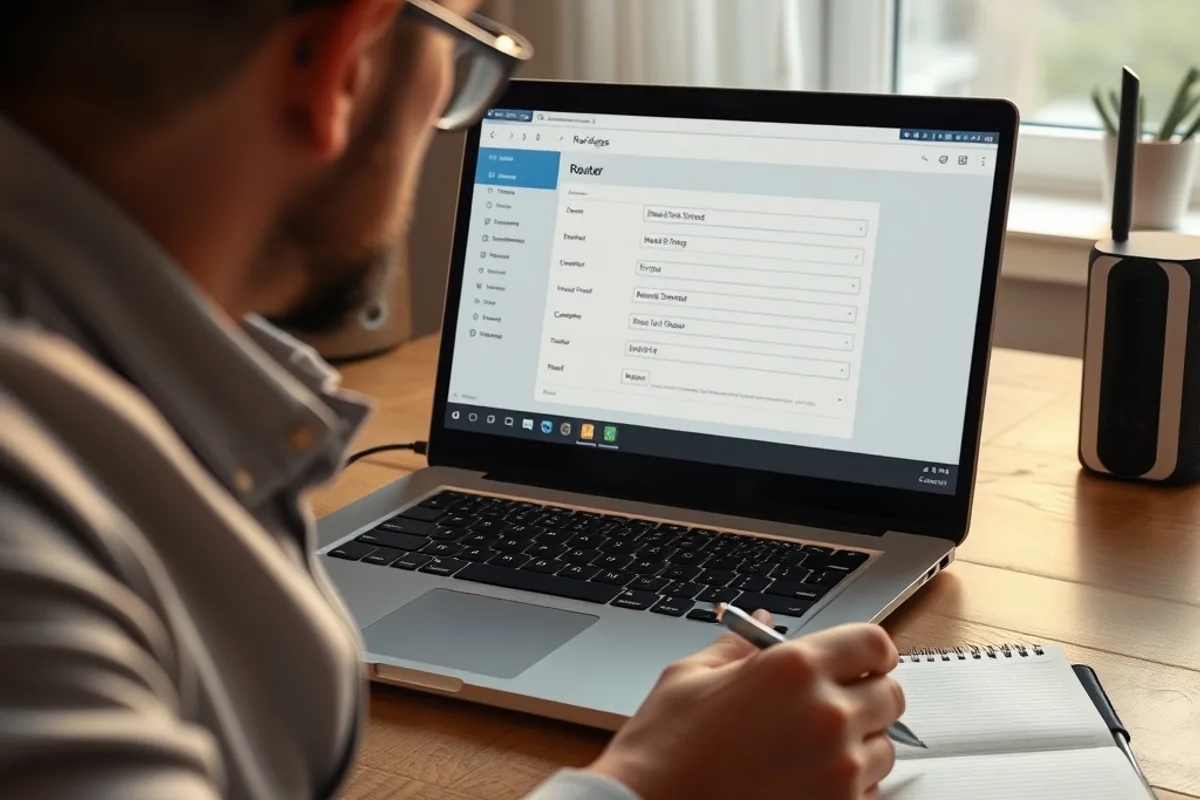
Wi-Fi settings that reduce exposure
Use WPA3 if every device supports it, or WPA2 with a strong passphrase if not. Disable WPS, the push-button pairing feature that has a long history of weaknesses. Hide nothing and rely on real encryption instead: a hidden network name is not a security measure, and it makes troubleshooting harder for you.
Choose a network name that does not identify the model or the household. Change it from the default, because the default name tells an attacker which known vulnerabilities to try. Keep the guest network separate and use it for visitors and devices that do not need to reach your computers or storage.
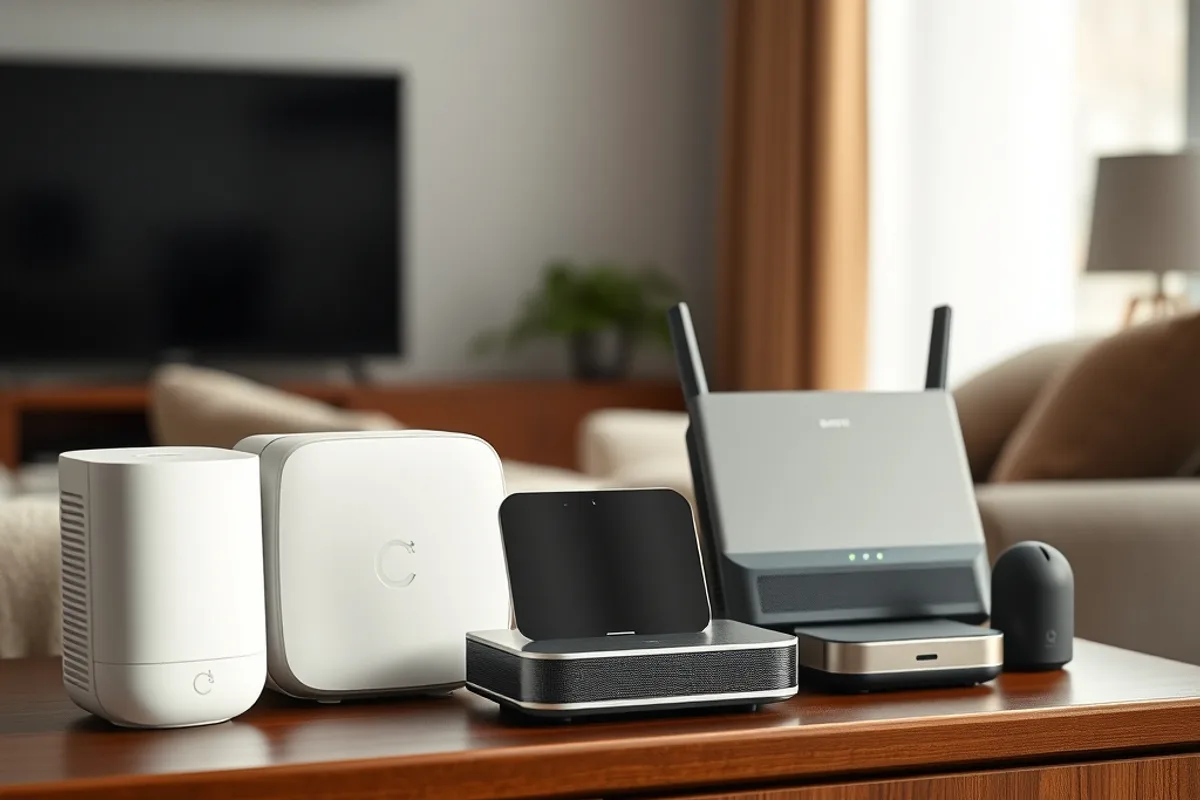
A home network is only as private as the router that controls it.
Guest networks and smart devices
Smart devices are convenient and often poorly secured. Put cameras, plugs, TVs and speakers on the guest network or a separate VLAN if your router supports one. They still need internet access, but they should not be able to reach your laptop, phone or network storage. This one change limits the damage if a cheap device is compromised.
Check the privacy settings on each device as you add it. Disable cloud features you do not use and change default passwords on cameras immediately. If a device has no update policy and no way to change its password, consider whether it belongs on your network at all.
Also see our guide to where the money goes in a budget phone for a deeper comparison.
Remote access and port forwarding
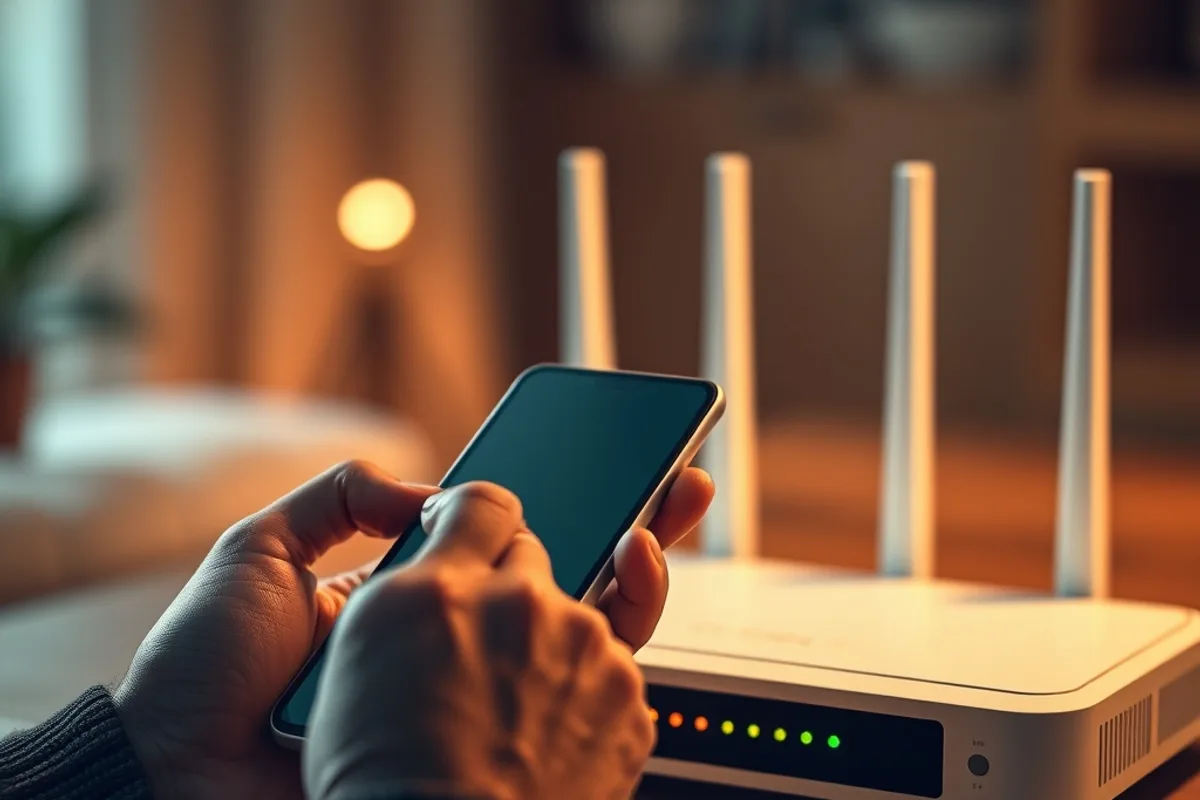
Port forwarding opens a door from the internet to a device inside your network. It is sometimes necessary for a game console or a private server, but every rule should have a reason, a named owner and a removal date. Review the list and delete anything you do not recognise. A forgotten rule for an old camera is a standing invitation.
Prefer a VPN into your home network over exposing a device directly. If the router offers a built-in VPN, enable it with strong credentials and test it from outside. For remote work, use your employer tools rather than opening ports on the home router. Convenience is not worth a permanent public entrance.
Background: how home network routers work.
Updates, backups and replacement age
Write the router model, firmware version and update date on a note you will find again. Check for updates every three to six months if automatic updates are unavailable. Keep a copy of the configuration after major changes so you can restore it without guessing. If the router fails, a backup shortens the outage.
Plan to replace the router when the manufacturer stops issuing security updates, not when the Wi-Fi feels slow. A five-year-old device with no patches is a bigger risk than a modest new one. If you rent the router from an internet provider, ask who is responsible for firmware updates and when the model is due for replacement.
A yearly checklist
Once a year, log in to the router and check five things: the admin password, the firmware date, the Wi-Fi encryption, the guest network and the port-forwarding list. Remove devices you no longer use and confirm that remote administration is still off. It takes fifteen minutes and catches most of the problems that accumulate silently.
Store the checklist with your other account recovery notes. If someone else in the household manages the network, make sure they know where the information is. Security that depends on one person remembering a password is fragile. A small written routine is more reliable than good intentions.
- Change the router administrator password and disable remote administration immediately.
- Enable automatic firmware updates or check for them every three to six months.
- Use WPA3 where possible and disable WPS and default network names.
- Put smart devices on a guest network so they cannot reach personal computers.
- Review port forwarding yearly and remove any rule you cannot explain.
Passkeys Are Finally Practical: A Migration Plan for Normal People